Automations
Schedule workflows to run automatically on a recurring basis
Automations
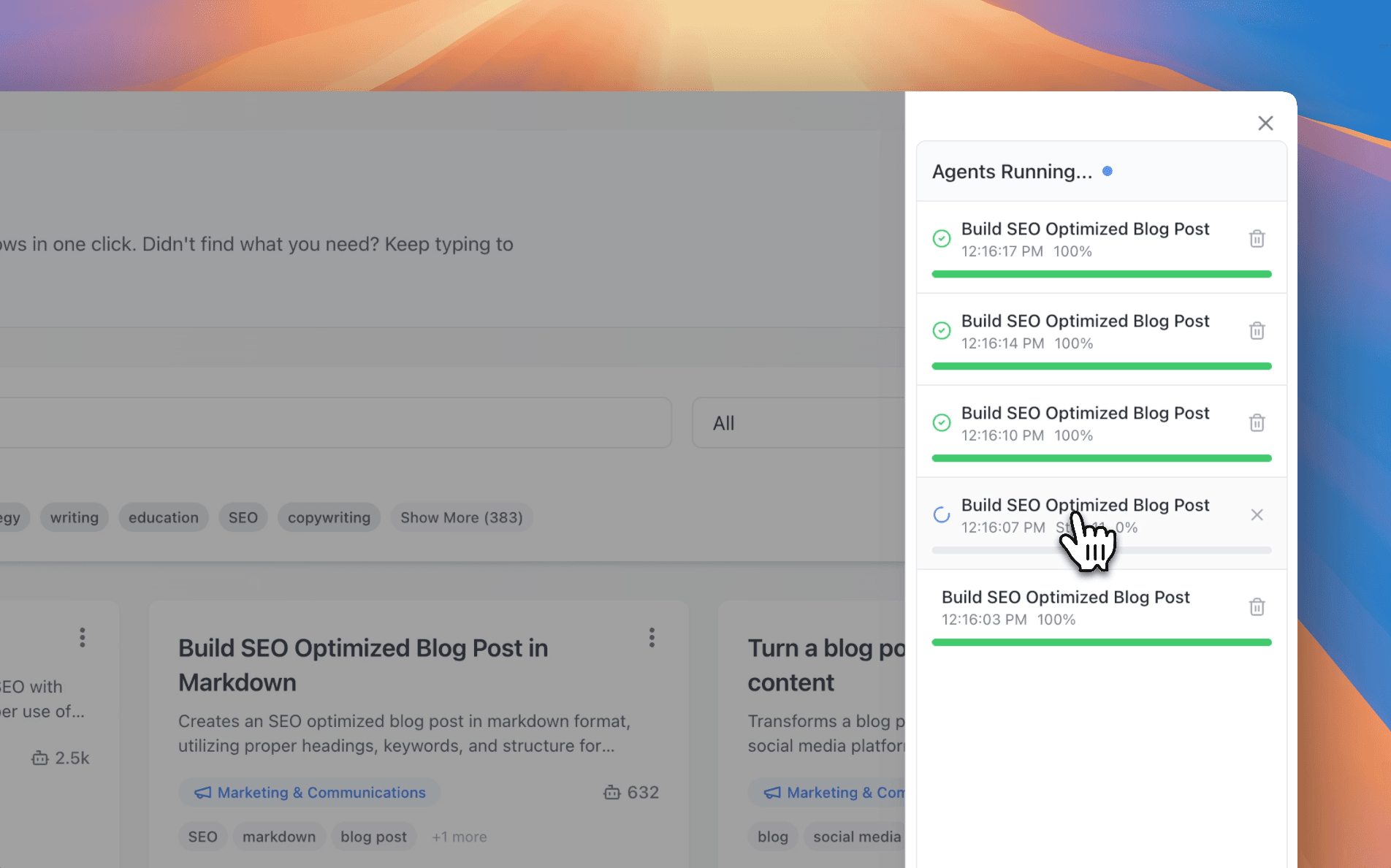
Automations let you schedule workflows to run automatically on a recurring basis. Set up once, and your agents will execute tasks on schedule—whether it's daily reports, weekly summaries, or monthly analyses.
What are Automations?
Automations are scheduled workflows that run automatically:
- Recurring execution: Run workflows on a schedule (daily, weekly, monthly, custom)
- Cron-based: Use cron expressions for flexible scheduling
- Agent-powered: Each automation uses a configured agent
- Variable support: Pass variables to workflows on each execution
- Execution history: Track all automation runs and results
Creating an Automation
Step 1: Choose Your Workflow
- Go to Scheduled Jobs (or Automations) from the sidebar
- Click "Create Automation" or "New Job"
- Select a workflow template from your library
- Or choose an agent and workflow combination
Step 2: Configure the Schedule
Set when your automation should run:
- Daily: Run every day at a specific time
- Weekly: Run on specific days of the week
- Monthly: Run on specific dates each month
- Custom: Use cron expressions for advanced scheduling
Example cron expressions:
0 9 * * *- Every day at 9:00 AM0 9 * * 1- Every Monday at 9:00 AM0 9 1 * *- First day of every month at 9:00 AM
Step 3: Set Variables
If your workflow uses variables, set default values:
- Fill in variable values that will be used for each execution
- Variables can be updated later without recreating the automation
- Some variables can be dynamic (dates, times, etc.)
Step 4: Select Your Agent
Choose which agent will execute the automation:
- Select from your existing agents
- The agent's tools and capabilities will be available
- Agent settings (model, temperature, etc.) apply to automation runs
Step 5: Activate
- Review your automation settings
- Toggle "Active" to enable the automation
- The automation will run according to its schedule
Managing Automations
Viewing Automations
The Automations page shows:
- Name and description: What the automation does
- Schedule: When it runs
- Status: Active, paused, or error
- Last execution: When it last ran
- Next execution: When it will run next
- Agent: Which agent executes it
Editing Automations
- Click on any automation to edit
- Modify schedule, variables, or agent
- Save changes
- The automation updates immediately
Pausing and Resuming
- Pause: Toggle off to temporarily stop an automation
- Resume: Toggle on to restart a paused automation
- Paused automations keep their schedule and settings
Deleting Automations
- Click the delete icon on an automation
- Confirm deletion
- The automation stops and is removed
Execution History
Viewing Executions
Each automation tracks its execution history:
- Click "View Executions" on any automation
- See all past runs with:
- Execution status (completed, failed, running)
- Start and end times
- Duration
- Tokens used and cost
- Error messages (if any)
Execution Status
- Completed: Automation ran successfully
- Failed: Automation encountered an error
- Running: Automation is currently executing
Troubleshooting Failed Executions
If an automation fails:
- Check the error message in execution history
- Verify agent configuration and tools
- Check variable values
- Ensure integrations are still connected
- Review workflow template for issues
Use Cases
Daily Reports
Schedule daily reports to run automatically:
Schedule: Every day at 8:00 AM
Workflow: Generate daily sales report
Variables: Date = Today
Agent: Analytics Agent
Weekly Summaries
Create weekly summaries:
Schedule: Every Monday at 9:00 AM
Workflow: Weekly team activity summary
Variables: Week = Current week
Agent: Team Assistant Agent
Monthly Analysis
Run monthly analyses:
Schedule: First day of month at 10:00 AM
Workflow: Monthly performance analysis
Variables: Month = Current month
Agent: Analytics Agent
Content Publishing
Automate content creation and publishing:
Schedule: Every Tuesday and Thursday at 2:00 PM
Workflow: Create and schedule social media posts
Variables: Platform = Twitter, Topic = Weekly theme
Agent: Social Media Agent
Best Practices
1. Start Simple
- Begin with daily automations
- Test workflows manually first
- Verify results before scheduling
2. Monitor Initially
- Check execution history regularly
- Verify outputs are correct
- Adjust schedules as needed
3. Use Descriptive Names
- Name automations clearly
- Include schedule in name if helpful
- Add descriptions explaining purpose
4. Set Appropriate Schedules
- Don't over-schedule (respect rate limits)
- Consider time zones
- Avoid peak usage times if possible
5. Keep Variables Updated
- Review variable values periodically
- Update dynamic values as needed
- Test variable changes before activating
Limitations
- Free Plan: Up to 5 active automations
- Pro Plan: Up to 20 active automations
- Ultra Plan: Up to 50 active automations
Upgrade your plan to create more automations.
Troubleshooting
Automation Not Running
Check:
- Is the automation active?
- Is the schedule correct?
- Is the agent configured properly?
- Are required integrations connected?
Fix:
- Verify automation is enabled
- Review cron expression
- Check agent settings
- Reconnect integrations if needed
Execution Failures
Check:
- Execution history for error messages
- Agent configuration
- Variable values
- Integration status
Fix:
- Review error details
- Update agent or workflow
- Correct variable values
- Fix integration issues
Schedule Not Working
Check:
- Cron expression syntax
- Time zone settings
- Automation status
Fix:
- Validate cron expression
- Adjust for time zone
- Ensure automation is active
Next Steps
- Creating Agents - Build agents for automations
- Templates Overview - Create workflows to automate
- Integrations - Connect tools for automation
- Execution Modes - Understand how automations execute