Core featuresExecution modes
Agent Mode
Execute workflows directly on Agentic Workers with ultra-fast inference
Agent Mode
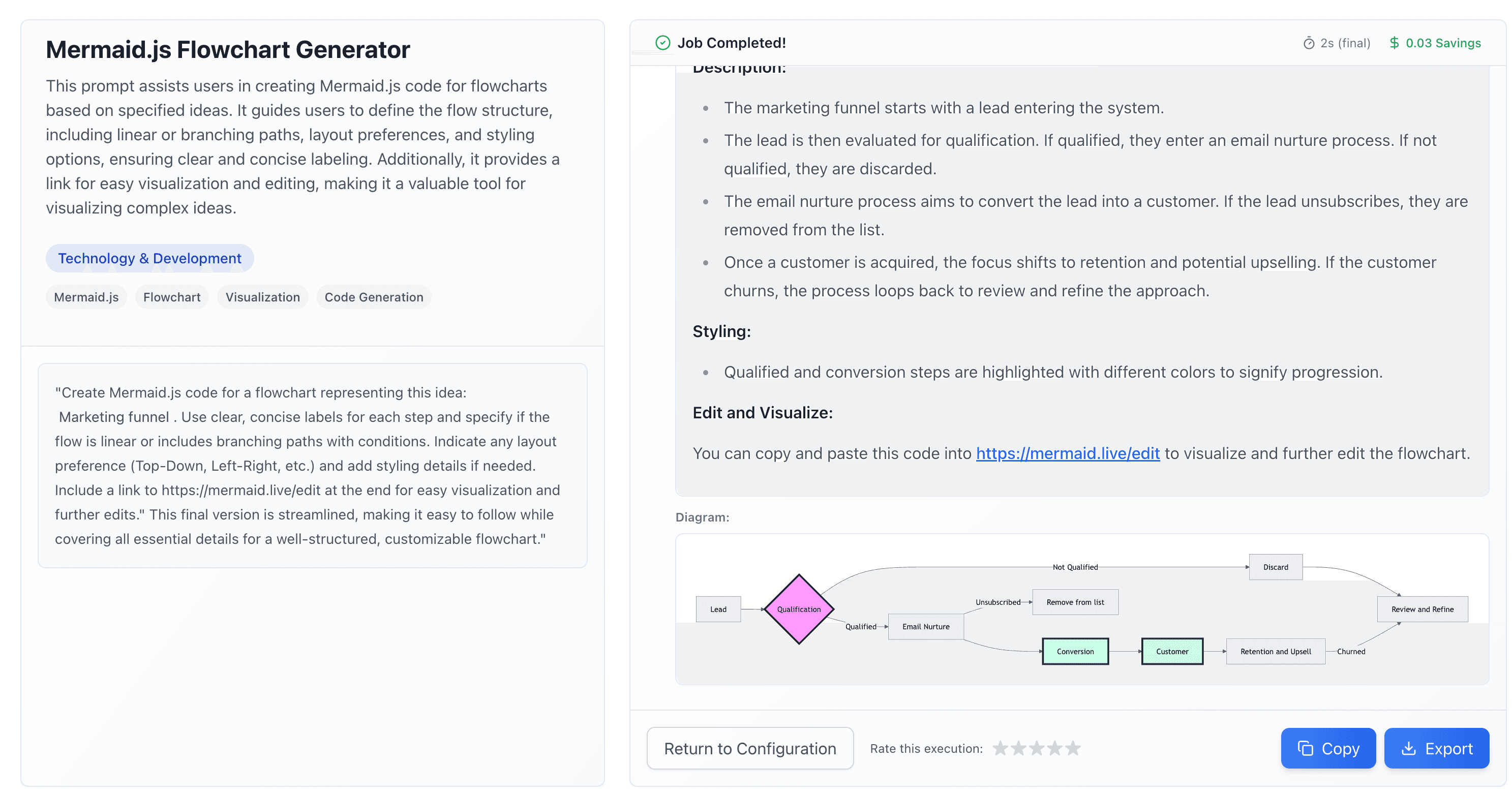
Agent Mode executes workflows directly on Agentic Workers, providing ultra-fast inference and dedicated workflow management. It's optimized for complex, multi-step tasks and background execution.
What is Agent Mode?
Agent Mode is Agentic Workers' native execution environment. When you run a workflow in Agent Mode:
- Ultra-fast inference: Optimized for speed and performance
- Dedicated interface: Purpose-built for workflow execution
- Background tasks: Run long workflows without blocking
- Full tool access: All integrations available
- Activity tracking: Monitor progress in real-time
When to Use Agent Mode
Use Agent Mode When:
- You need the fastest possible execution
- Running complex, multi-step workflows
- Executing long-running tasks (background mode)
- You want a dedicated workflow interface
- You need advanced features like prompt chaining
- You're using many tool integrations
Use Chat Mode When:
- You're already working in ChatGPT, Claude, or Gemini
- You want to combine workflows with regular chat
- You prefer the familiar AI platform interface
Running Workflows in Agent Mode
Method 1: From the Dashboard
- Navigate to Prompt Library
- Select a template
- Fill in variables (if required)
- Click "Start Workflow"
- Choose "Agent Mode" if prompted
- Monitor progress in the activity drawer
Method 2: From Agent Chat
- Open an agent from the Agents section
- Start a new chat session
- Enter your workflow prompt
- The workflow executes in Agent Mode automatically
- View results in the chat interface
Method 3: From Your Library
- Go to My Library or Prompt Library
- Click on a saved template
- Click "Run" or "Start Workflow"
- Select Agent Mode execution
- Monitor progress
Background Tasks
Agent Mode supports background execution for long-running workflows:
Starting a Background Task
- Start a workflow as usual
- If the workflow is long-running, you'll see an option to run in background
- Click "Run in Background"
- Continue working on other tasks
- Check the Activity drawer for progress
Monitoring Background Tasks
- Open the Activity drawer (sidebar icon)
- View all running and completed workflows
- Click on any task to see details
- View results when complete
Background Task Benefits
- Non-blocking: Continue working while workflows run
- Progress tracking: See real-time updates
- Result storage: Access results later
- Multiple tasks: Run several workflows simultaneously
Agent Mode Features
Ultra-Fast Inference
Agent Mode is optimized for speed:
- Direct API connections
- Optimized model routing
- Reduced latency
- Parallel execution when possible
Full Tool Access
All your connected integrations are available:
- Google Workspace (Docs, Sheets, Calendar)
- Communication (Slack, Gmail, Outlook)
- Productivity (Notion, Airtable, Linear)
- Research (Perplexity, Reddit, Firecrawl)
- And many more...
Prompt Chaining
Agent Mode fully supports prompt chaining:
- Multi-step workflows
- Data passing between steps
- Conditional execution
- Complex automation
Activity Tracking
Monitor all Agent Mode executions:
- Real-time progress updates
- Step-by-step results
- Error handling and retries
- Cost and token tracking
Differences from Chat Mode
| Feature | Agent Mode | Chat Mode |
|---|---|---|
| Speed | Ultra-fast | Platform-dependent |
| Interface | Dedicated workflow UI | AI platform chat |
| Background Tasks | ✅ Supported | ❌ Not supported |
| Tool Access | ✅ Full access | ✅ Full access |
| Prompt Chaining | ✅ Advanced | ✅ Basic |
| Activity Tracking | ✅ Detailed | ⚠️ Limited |
Performance Tips
Optimize Workflow Design
- Break complex workflows into steps
- Use variables efficiently
- Minimize redundant operations
- Cache results when possible
Model Selection
Choose the right model for your task:
- GPT-4o-mini: Fast, cost-effective for simple tasks
- GPT-4o: Best for complex reasoning
- Claude 3.5 Sonnet: Excellent for long-form content
- Gemini Pro: Great for multimodal tasks
Tool Usage
- Connect only needed integrations
- Use tools efficiently
- Avoid redundant API calls
- Batch operations when possible
Troubleshooting
Slow Execution
- Check model selection (use faster models for simple tasks)
- Review workflow complexity
- Check integration connection status
- Monitor activity drawer for errors
Workflow Errors
- Review error messages in activity drawer
- Check variable values
- Verify tool connections
- Test workflow step-by-step
Background Task Issues
- Check activity drawer for status
- Review error logs
- Verify workflow syntax
- Retry failed steps if needed
Next Steps
- Chat Mode - Learn about cross-platform execution
- Creating Workflows - Build workflows for Agent Mode
- Available Tools - See all available integrations