Core featuresExecution modes
Chat Mode
Run workflows in ChatGPT, Claude, Gemini, and more with Chat Mode
Chat Mode
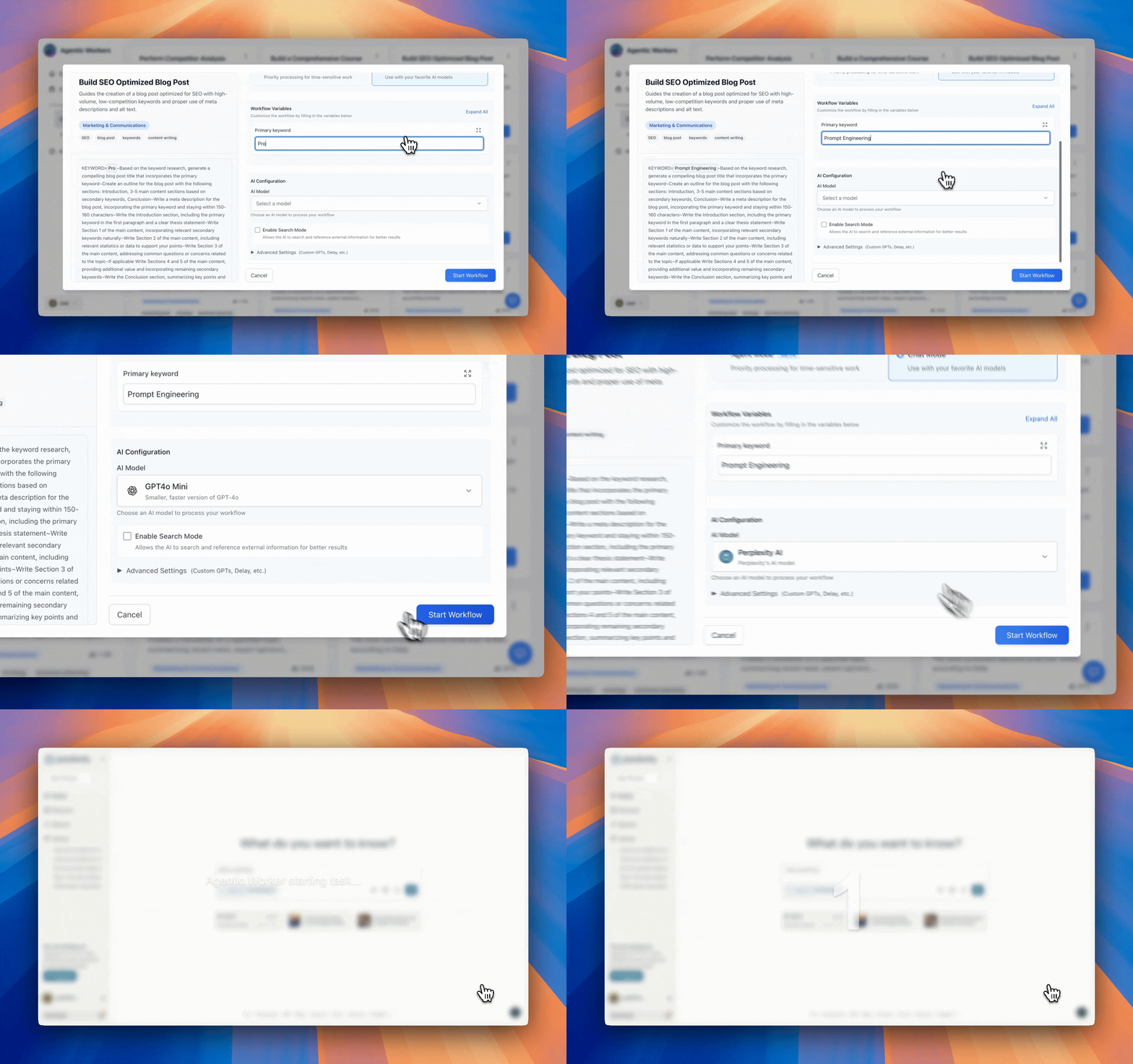
Chat Mode lets you run Agentic Workers workflows directly in your favorite AI platforms: ChatGPT, Claude, Gemini, Perplexity AI, and more. No need to switch between platforms—execute workflows where you already work.
What is Chat Mode?
Chat Mode uses a browser extension to inject workflow execution capabilities into AI chat interfaces. When you're chatting with ChatGPT, Claude, or Gemini, you can:
- Execute multi-step workflows
- Use tool integrations (Google Docs, Slack, etc.)
- Chain prompts together
- Access your saved templates
All without leaving the AI platform you're already using.
Setting Up Chat Mode
Step 1: Install the Browser Extension
- Go to the Chrome Web Store
- Search for "Agentic Workers" or visit the extension page
- Click "Add to Chrome"
- Follow the installation prompts
- Pin the extension to your toolbar for easy access
Step 2: Connect Your Account
- Click the Agentic Workers extension icon
- Log in with your Agentic Workers account
- Authorize the extension to access your workflows
Step 3: Verify Installation
- Open ChatGPT, Claude, or Gemini
- Look for the Agentic Workers icon in the chat interface
- You're ready to use Chat Mode!
Using Chat Mode
Running a Workflow
- Open your preferred AI platform (ChatGPT, Claude, Gemini, etc.)
- Start a new conversation
- Type your workflow prompt or use a template
- The extension will detect workflow syntax and execute it
- Results appear in the chat interface
Using Templates
- Click the Agentic Workers icon in the chat
- Browse your saved templates
- Select a template
- Fill in any required variables
- The workflow executes in the current chat
Tool Integration
When using Chat Mode, your connected integrations are available:
- Google Docs, Sheets, Calendar
- Slack, Gmail, Outlook
- Notion, Airtable, Linear
- And more...
Tools are called automatically when referenced in your workflow.
Cross-Platform Execution
Chat Mode works across multiple platforms:
ChatGPT
- OpenAI's ChatGPT interface
- GPT-4, GPT-3.5 models
- Full workflow support
Claude
- Anthropic's Claude interface
- Claude 3.5 Sonnet, Claude 3 Opus
- Multi-step workflows supported
Gemini
- Google's Gemini interface
- Gemini Pro, Gemini Ultra
- Tool calling enabled
Perplexity AI
- Perplexity's chat interface
- Research-focused workflows
- Web search integration
Custom GPTs
- Your custom GPT instances
- Workflows work seamlessly
- No additional setup needed
Chat Mode vs Agent Mode
When to Use Chat Mode
- You're already working in ChatGPT, Claude, or Gemini
- You want to use the AI platform's native features
- You prefer the familiar interface
- You want to combine workflows with regular chat
When to Use Agent Mode
- You need ultra-fast inference
- You want a dedicated workflow interface
- You're running complex, long-running tasks
- You need background task execution
Best Practices
Workflow Design
- Keep workflows focused and specific
- Use clear variable names
- Test workflows before sharing
- Document complex workflows
Performance
- Chat Mode uses the AI platform's inference speed
- For faster execution, consider Agent Mode
- Long workflows may take time in Chat Mode
Troubleshooting
If Chat Mode isn't working:
- Check Extension Status: Ensure the extension is enabled
- Refresh the Page: Reload the AI platform page
- Check Connection: Verify you're logged into Agentic Workers
- Clear Cache: Clear browser cache and cookies
- Reinstall Extension: If issues persist, reinstall the extension
Limitations
- Chat Mode is subject to the AI platform's rate limits
- Some advanced features may require Agent Mode
- Extension must be installed and enabled
- Works best in Chrome-based browsers
Next Steps
- Agent Mode - Learn about ultra-fast inference
- Creating Workflows - Build your own workflows
- Prompt Chaining - Create multi-step workflows