Templates & Variables
Learn how to use variables in templates for dynamic workflows
Templates & Variables
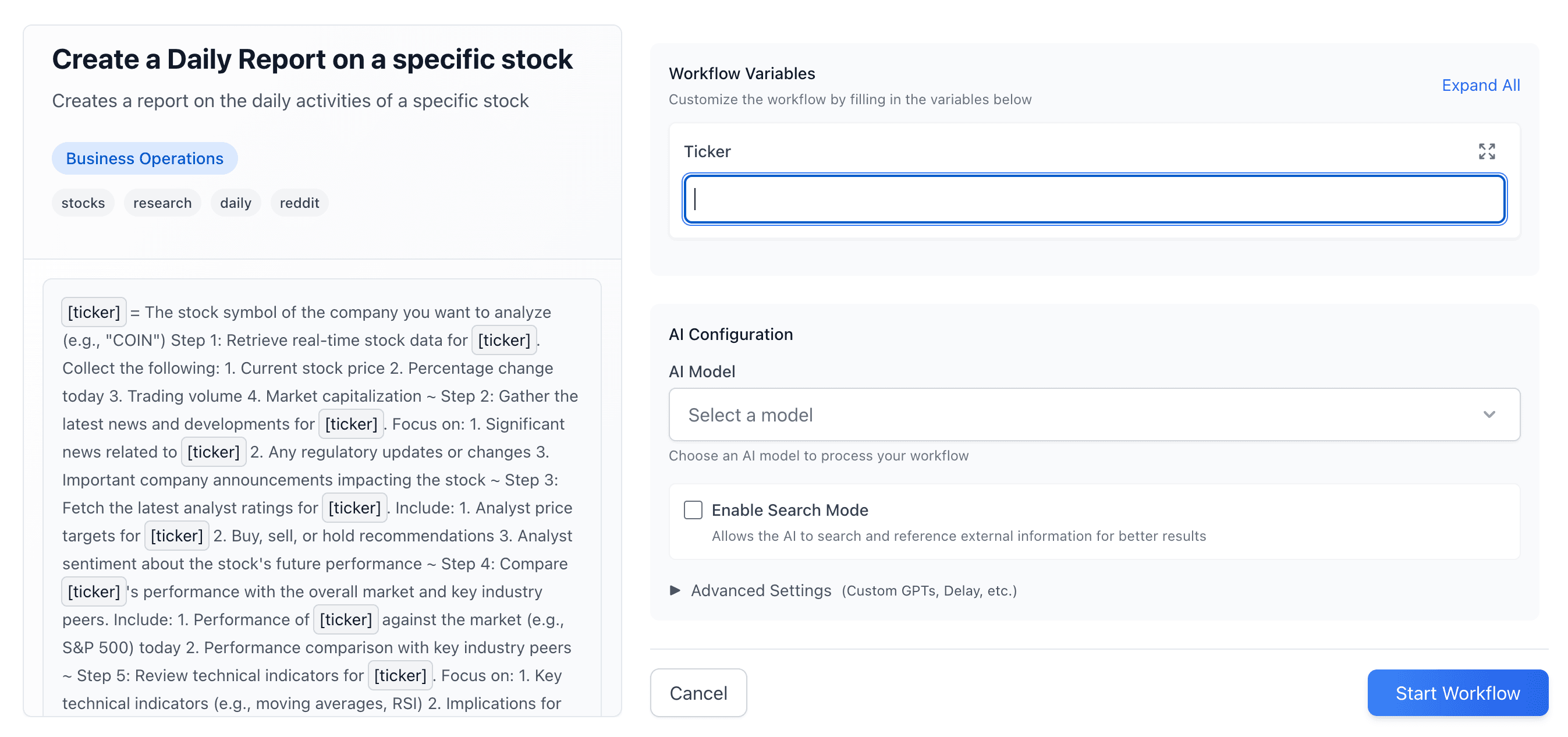
Variables make your workflows reusable and dynamic. Instead of writing a new workflow for each use case, create one template with variables that can be filled in each time you run it.
What are Variables?
Variables are placeholders in your workflow that get replaced with actual values when you run it. They're marked with square brackets: [Variable Name]
Example:
Write a blog post about [Topic] for [Target Audience] with a [Tone] tone.When you run this workflow, you'll be prompted to fill in:
- Topic
- Target Audience
- Tone
Variable Syntax
Basic Syntax
Variables use square brackets: [Variable Name]
Hello [Name], welcome to [Company]!Variable Naming
Good variable names:
[Customer Name]- Clear and descriptive[Product Category]- Specific purpose[Email Subject]- Indicates usage[Target Audience]- Descriptive
Avoid:
[var1],[data],[thing]- Too generic[customer_name]- Use spaces, not underscores[CUSTOMER]- Not necessary to shout[customer-name]- Use spaces, not hyphens
Variable Best Practices
- Be Descriptive: Name variables so their purpose is clear
- Use Spaces:
[Customer Name]not[customer_name] - Limit Count: Maximum 3 variables per workflow recommended
- Human Readable: Variables should be easy to understand
Using Variables in Workflows
Simple Variable Usage
Write an email to [Customer Name] about [Product].When executed, [Customer Name] and [Product] are replaced with actual values.
Variables with Tools
Simply describe what you want your agent to do with tools:
Create a Google Doc titled [Document Title] with content [Content]~
Share the document via Slack to [Channel] with message [Message]
Your agent will automatically use Google Docs and Slack if those tools are enabled.
Variables in Prompt Chains
Research [Topic]~
Summarize findings about [Topic]~
Create a document titled "[Topic] Summary"
Variables persist across steps in a chain.
Variable Definition Format
When creating workflows with variables, you can define them at the top:
[Topic]=[Topic to research]
[Format]=[Output format: blog post / email / social media]

Research [Topic] and create content in [Format] format~
Write the content~
Review and refine
The [Variable Name]=[Description] format helps document what each variable is for.
Escaping Variables
To use literal brackets (not variables), escape them with a backslash:
This is a variable: [Name]
This is literal: \[not a variable\]
The escaped version \[not a variable\] will appear as [not a variable] in the output.
Variable Substitution
How It Works
- You create a workflow with variables:
[Name],[Topic] - When you run the workflow, a modal appears
- You fill in values for each variable
- Variables are replaced throughout the workflow
- The workflow executes with substituted values
Case Insensitive
Variables are case-insensitive:
[Name]=[name]=[NAME]- All are treated as the same variable
Partial Substitution
If a variable isn't filled in, it remains as [Variable Name] in the output. Always fill in all required variables for best results.
Examples
Content Creation Template
[Topic]=[What to write about]
[Audience]=[Who is the audience]
[Tone]=[Professional / Casual / Friendly]

Research [Topic] for [Audience]~
Create an outline~
Write the content with a [Tone] tone~
Review and refine
Email Template
[Recipient]=[Email recipient name]
[Subject]=[Email subject line]
[Message]=[Email content]

Write an email to [Recipient]~
Subject: [Subject]~
Body: [Message]~
Send the email via Gmail
Research Template
[Research Topic]=[What to research]
[Output Format]=[Report / Summary / Analysis]

Search for information about [Research Topic] using web search~
Summarize findings in [Output Format] format~
Create a Google Doc with the summary
Advanced Variable Usage
Variables Across Steps
Variables work across prompt chains:
Step 1: Research [Topic]~
Step 2: Based on [Topic], create a summary~
Step 3: Share [Topic] summary via Slack
The [Topic] variable is used in all three steps.
Combining Variables
You can combine variables in text:
Create a document titled "[Topic] - [Date] Analysis"Both [Topic] and [Date] will be substituted.
Variables with Tools
Variables work seamlessly when telling your agent to use tools:
Create a Google Doc titled [Title]~
Add content: [Content]~
Update the document with additional information
Your agent will automatically use Google Docs if it's enabled.
Tips for Effective Variables
1. Limit Variable Count
- Maximum 3 variables per workflow recommended
- Too many variables make workflows hard to use
- Use tools to gather information instead
2. Provide Context
When possible, include descriptions:
[Topic]=[Research topic - be specific]
[Format]=[Output format: blog post / email / report]
3. Use Descriptive Names
[Customer Name]not[name][Product Category]not[category][Email Subject]not[subject]
4. Group Related Variables
If you need multiple related variables, consider if they can be combined:
- Instead of:
[First Name]and[Last Name] - Use:
[Full Name]
Troubleshooting
Variable Not Substituting
- Check spelling: Variables are case-insensitive but must match exactly
- Ensure brackets are correct:
[Name]not[NameorName] - Verify you filled in the variable in the modal
Too Many Variables
- Consider using tools to gather information
- Break workflow into smaller pieces
- Combine related variables
Variable Appearing Literally
- Check if you meant to escape it:
\[literal\] - Verify variable syntax is correct
- Ensure you're not using special characters incorrectly
Next Steps
- Prompt Chaining - Use variables across multiple steps
- Templates Overview - Learn more about template syntax
- Creating Workflows - Build workflows with variables