Core featuresTemplatesPrompt library
Agentic Search
Generate custom workflows when you can't find what you need
Agentic Search
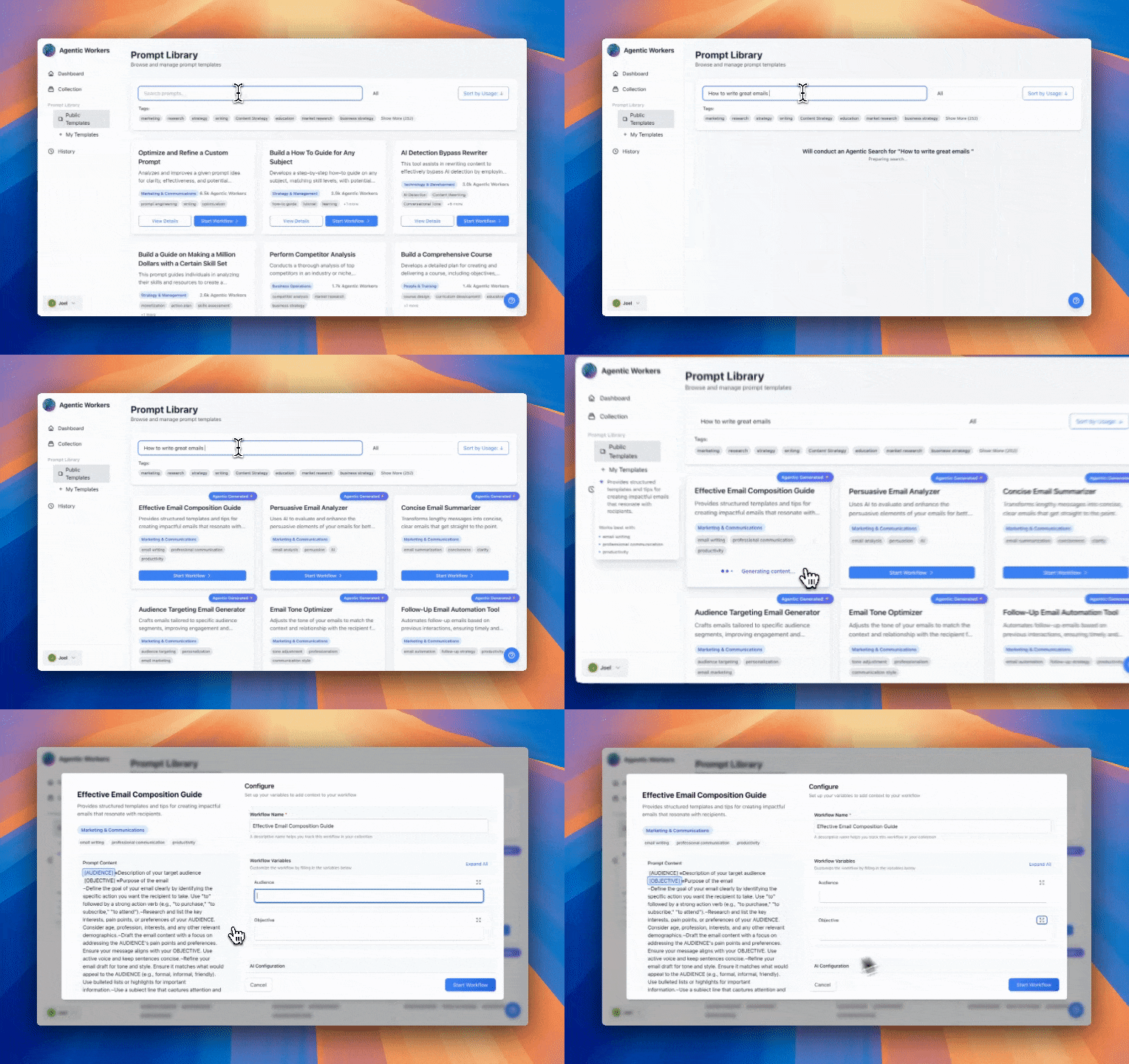
Agentic Search uses AI to generate custom workflows when you can't find what you need in the Prompt Library. Describe what you want to accomplish, and Agentic Search creates 6 potential workflows tailored to your needs.
What is Agentic Search?
Agentic Search is an AI-powered workflow generator that:
- Creates custom workflows based on your description
- Generates 6 options so you can choose the best fit
- Considers your agent and connected integrations
- Uses your context to create relevant workflows
Instead of browsing templates, describe your goal and get workflows generated specifically for you.
When to Use Agentic Search
Use Agentic Search When:
- You can't find a suitable template in the library
- You have a specific, unique need
- You want workflows tailored to your agent
- You need workflows using your connected integrations
- You're exploring new automation possibilities
Use the Library When:
- You want proven, tested workflows
- You need common, standard workflows
- You prefer community-vetted templates
- You want to see usage statistics
How Agentic Search Works
Step 1: Describe Your Goal
Enter a description of what you want to accomplish:
Examples:
- "Create a weekly newsletter for my SaaS product"
- "Research competitors in the project management space"
- "Automate customer onboarding emails"
- "Generate social media posts from blog articles"
Step 2: AI Generation
Agentic Search:
- Analyzes your description
- Considers your agent's persona
- Checks your connected integrations
- Generates 6 workflow options
Step 3: Review Options
You'll see 6 generated workflows:
- Each with a name and description
- Tailored to your needs
- Using available tools
- Ready to use or customize
Step 4: Choose and Use
- Review all 6 options
- Select the best fit
- Customize if needed
- Run the workflow
Using Agentic Search
From the Prompt Library
- Go to Prompt Library
- Look for Agentic Search (sparkle icon)
- Click to open search
- Enter your description
- Review generated workflows
From Dashboard
- Navigate to Dashboard
- Find Agentic Search option
- Enter your goal
- Generate workflows
Search Best Practices
Be Specific:
- ✅ "Create a weekly newsletter for SaaS product targeting developers"
- ❌ "Make a newsletter"
Include Context:
- ✅ "Research competitors in project management tools and create comparison report"
- ❌ "Research competitors"
Mention Tools:
- ✅ "Create Google Doc with research findings and share via Slack"
- ❌ "Create a document"
Generated Workflow Features
Personalized to Your Agent
Workflows consider:
- Your agent's persona
- Agent's capabilities
- Agent's role and purpose
Uses Your Integrations
Workflows include:
- Tools you've connected
- Available integrations
- Relevant tool triggers
Customized Variables
Workflows include:
- Relevant variables
- Appropriate variable names
- Context-specific inputs
Example Generated Workflows
Input: "Create weekly newsletter"
Generated Options:
- "Weekly Newsletter Generator" - Gathers content, writes newsletter, formats for email
- "Newsletter with Research" - Researches topics, creates content, formats newsletter
- "Automated Newsletter Pipeline" - Multi-step workflow with tool integration
- "Quick Newsletter Creator" - Simple, fast newsletter generation
- "Newsletter with Analytics" - Includes performance tracking
- "Custom Newsletter Builder" - Highly customizable workflow
Input: "Research competitors"
Generated Options:
- "Competitor Analysis Report" - Comprehensive research and analysis
- "Quick Competitor Check" - Fast competitor overview
- "Competitor Comparison Table" - Side-by-side comparison
- "Competitor Research with Tools" - Uses Perplexity, Reddit, etc.
- "Deep Competitor Dive" - Extensive research workflow
- "Competitor Insights Summary" - Concise insights report
Customizing Generated Workflows
After Generation
- Select a generated workflow
- Click "Use" or "Customize"
- Edit variables, steps, or tools
- Save your customized version
Making Improvements
- Add more steps
- Include additional tools
- Refine instructions
- Adjust variables
- Test and iterate
Best Practices
1. Be Descriptive
- Include specific details
- Mention your use case
- Describe desired output
- Note any constraints
2. Review All Options
- Don't pick the first one
- Compare all 6 options
- Consider different approaches
- Choose the best fit
3. Customize as Needed
- Generated workflows are starting points
- Adjust to your exact needs
- Add or remove steps
- Refine instructions
4. Save Good Workflows
- Save generated workflows you like
- Build your personal library
- Share with team if useful
- Iterate and improve
Limitations
Generation Quality
- Generated workflows are suggestions
- May need refinement
- Test before relying on them
- Adjust as needed
Tool Availability
- Only uses connected integrations
- May suggest unavailable tools
- Connect integrations first
- Verify tool availability
Variable Complexity
- May generate too many variables
- Simplify if needed
- Limit to 3 variables recommended
- Use tools to gather info instead
Troubleshooting
No Suitable Options
- Try rephrasing your description
- Be more specific
- Break into smaller goals
- Try multiple searches
Workflows Don't Match
- Generated workflows are suggestions
- Customize to fit your needs
- Combine elements from multiple options
- Create your own based on ideas
Missing Tools
- Connect required integrations
- Generated workflows use available tools
- Add tools to agent if needed
- Modify workflow to use different tools
Next Steps
- Using the Prompt Library - Browse existing templates
- Saving & Organizing Prompts - Build your library
- Creating Workflows - Build custom workflows